Creating Video Game Assets with AI: A Complete Guide
Learn how to generate professional-quality video game assets using AI image generation, from sprites to backgrounds and character designs.
Creating Video Game Assets with AI: A Complete Guide
Game development requires countless visual assets, from character sprites to background environments. AI image generation can dramatically speed up this process while maintaining quality. Here's how to create game assets effectively.
Why Use AI for Game Assets?
Time Savings
Traditional asset creation can take hours or days per asset. AI generation produces results in seconds, allowing rapid iteration and experimentation.
Cost Efficiency
Hiring artists or purchasing asset packs can be expensive. AI generation provides unlimited assets at a fraction of the cost.
Consistency
AI can maintain consistent style across all your assets, creating a cohesive visual identity for your game.
Rapid Prototyping
Quickly generate placeholder assets during development, then refine or replace them as needed.
Types of Game Assets You Can Generate
1. Character Sprites
Generate character designs, poses, and variations:
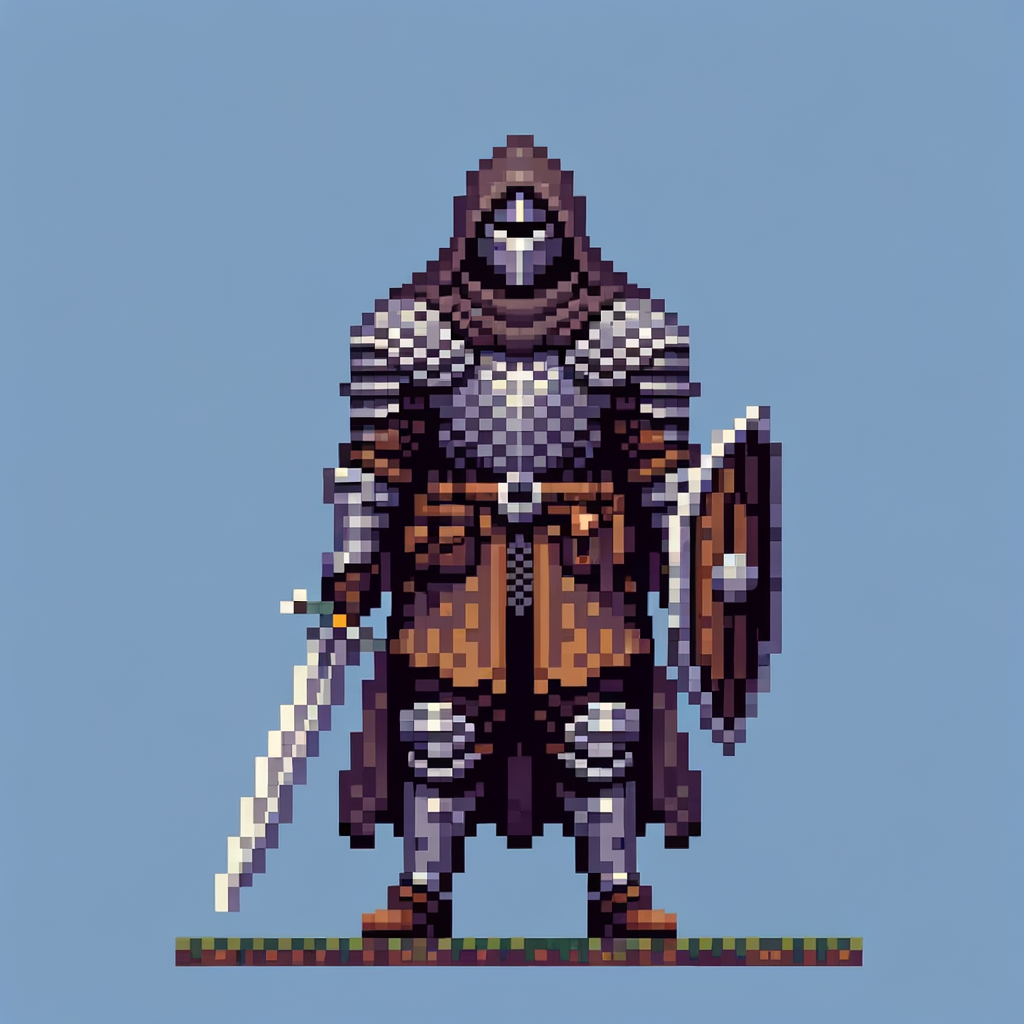
Prompt Example:
"32-bit pixel art sprite of a fantasy warrior character, front view, transparent background, game asset style, detailed armor, sword in hand"
2. Background Environments
Create atmospheric backgrounds and levels:
Prompt Example:
"Pixel art background of a medieval castle courtyard, 16-bit style, parallax layers, game environment, top-down perspective"
3. Items and Collectibles
Design game items, power-ups, and collectibles:
Prompt Example:
"Game asset icon of a health potion bottle, isometric view, transparent background, fantasy RPG style, detailed glass texture"
4. UI Elements
Generate interface elements and icons:
Prompt Example:
"Minimalist game UI button design, modern style, rounded corners, gradient background, suitable for mobile game"
5. Environmental Props
Create objects and decorations for game worlds:
Prompt Example:
"Game asset of a treasure chest, 3D isometric style, wooden texture, metal clasps, transparent background"
Best Practices for Game Asset Generation
1. Specify Pixel Art Style
For retro-style games, explicitly mention pixel art:
Good Prompts:
- "8-bit pixel art sprite"
- "16-bit style character"
- "32-bit pixel art asset"
- "Retro pixel art background"
2. Request Transparent Backgrounds
Always specify transparent backgrounds for sprites and items:
Include in prompt:
- "transparent background"
- "no background"
- "alpha channel"
- "PNG with transparency"
3. Define Art Style
Be specific about your game's art style:
Style Examples:
- "low poly 3D style"
- "hand-drawn cartoon style"
- "realistic 3D render"
- "flat design minimalist"
- "watercolor painting style"
4. Specify Perspective
Mention the camera angle or view:
Perspective Options:
- "top-down view"
- "side view"
- "isometric perspective"
- "front view"
- "three-quarter view"
5. Include Technical Details
Add game-specific requirements:
Technical Specs:
- "suitable for 64x64 pixel sprite"
- "tileable texture"
- "seamless pattern"
- "game-ready asset"
Size Considerations for Game Assets
Square Assets (1024x1024)
Best for:
- Character sprites (can be scaled down)
- Item icons
- UI elements
- Texture tiles
Landscape (1792x1024)
Best for:
- Wide background environments
- Level backgrounds
- Parallax layers
- Menu backgrounds
Portrait (1024x1792)
Best for:
- Tall character designs
- Vertical UI panels
- Loading screens
- Mobile game assets
Workflow: Creating a Complete Asset Set
Step 1: Define Your Art Style
Create a style guide with example prompts that define your game's visual identity.
Example Style Guide:
- Base style: "32-bit pixel art"
- Color palette: "warm earth tones with vibrant accents"
- Lighting: "soft ambient lighting"
- Perspective: "isometric"
Step 2: Generate Base Assets
Start with core assets:
1. Main Character
- "32-bit pixel art character sprite, fantasy warrior, front view, transparent background, detailed armor, game asset"
2. Enemy Types
- "32-bit pixel art enemy sprite, goblin character, side view, transparent background, menacing pose"
3. Environment Tiles
- "32-bit pixel art ground tile, grass texture, top-down view, tileable, seamless pattern"
Step 3: Create Variations
Generate multiple variations of each asset:
Variation Prompts:
- Different color schemes
- Various poses
- Multiple angles
- Seasonal variations
Step 4: Post-Processing
After generation, you may need to:
- Resize to exact pixel dimensions
- Adjust colors for consistency
- Add transparency if needed
- Optimize file sizes
- Create sprite sheets
Advanced Techniques
1. Consistent Character Design
Maintain character consistency across assets:
Template Approach:
"[Character name], [art style], [view], [action/pose], [background requirement], [technical specs]"
Example:
"Knight character, 32-bit pixel art, front view, idle animation frame, transparent background, game sprite"
2. Creating Asset Series
Generate cohesive sets:
Series Prompt Structure:
- Base description (consistent across all)
- Specific variation (unique per asset)
- Style and technical specs (same for all)
Example Series:
- "32-bit pixel art [WEAPON TYPE], fantasy RPG style, transparent background, game asset"
- Replace [WEAPON TYPE] with: sword, axe, bow, staff, etc.
3. Environment Generation
Create cohesive game environments:
Layered Approach:
1. Generate base terrain
2. Add environmental elements
3. Create foreground details
4. Design interactive objects
Real-World Examples
Example 1: Platformer Character
Prompt:
"32-bit pixel art platformer character sprite, side view, running animation frame, transparent background, retro game style, detailed pixel work"
Example 2: RPG Background
Prompt:
"Pixel art background of a fantasy forest path, 16-bit style, parallax scrolling layers, game environment, atmospheric lighting, 1792x1024"
Example 3: Collectible Item
Prompt:
"Isometric game asset of a magic crystal, transparent background, fantasy RPG style, glowing effect, collectible item, detailed"
Example 4: UI Icon
Prompt:
"Minimalist game UI icon, inventory item slot, flat design, modern style, transparent background, 64x64 suitable"
Example 5: Boss Character
Prompt:
"32-bit pixel art boss character, large sprite, front view, menacing pose, dark fantasy style, transparent background, game asset"
Integration Tips
1. Asset Organization
Organize generated assets:
- By type (characters, items, backgrounds)
- By game area/level
- By style variant
- With consistent naming
2. Asset Optimization
After generation:
- Resize to exact game requirements
- Optimize file formats (PNG for transparency, JPG for backgrounds)
- Create sprite sheets for animations
- Compress for web/mobile
3. Iteration Workflow
1. Generate multiple variations
2. Select best matches
3. Refine prompts based on results
4. Generate final assets
5. Post-process as needed
Common Challenges and Solutions
Challenge: Inconsistent Style
Solution: Create a detailed style guide and use it in every prompt. Save successful prompts as templates.
Challenge: Wrong Perspective
Solution: Always specify the exact view (top-down, side, isometric) in your prompts.
Challenge: Background Issues
Solution: Always request "transparent background" and use post-processing tools if needed.
Challenge: Size Mismatches
Solution: Generate at higher resolution (1024x1024) and scale down to exact game requirements.
Tools and Resources
Post-Processing Tools
- Aseprite: Pixel art editor
- Photoshop/GIMP: Image editing
- TexturePacker: Sprite sheet creation
- ImageMagick: Batch processing
Optimization Tools
- TinyPNG: Image compression
- Squoosh: Web-based optimization
- OptiPNG: Command-line optimization
Best Practices Summary
1. Be Specific: Include art style, perspective, and technical requirements
2. Request Transparency: Always ask for transparent backgrounds for sprites
3. Maintain Consistency: Use style guides and templates
4. Iterate: Generate multiple variations and refine
5. Post-Process: Optimize and adjust as needed
6. Organize: Keep assets well-organized and named consistently
Conclusion
AI image generation is a powerful tool for game developers, dramatically reducing the time and cost of asset creation. By following these guidelines and best practices, you can create professional-quality game assets efficiently.
Remember to:
- Define your art style clearly
- Use specific, detailed prompts
- Request appropriate technical specs
- Iterate and refine
- Post-process as needed
Start creating game assets with Imagify and bring your game vision to life!
Ready to Start Generating Images?
Get started with free credits and begin creating amazing AI-generated images today.
Get Started Free